Description
Create and manage a shared task list for streamers and chat for co-working streams.
Add and remove tasks directly from chat and display active tasks on-screen.
Import File
Task List.sb (11.5 KB)
Installation
In StreamerBot click the Import button in the top menu. Drag the .sb file into the Import String field.
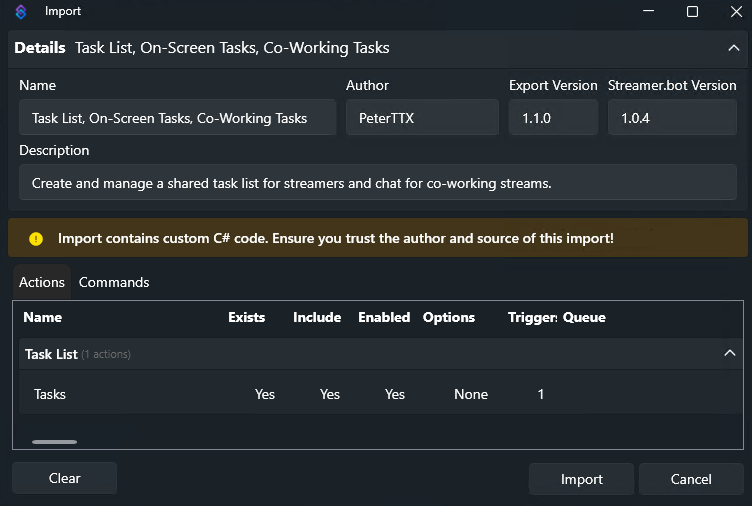
Imported Commands are inactive by default for security reasons, so you will need to enable the Task Command
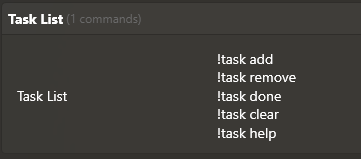
Adding Tasks
Use the !task add command to add new Tasks to the list
Example:
!task add Testing
Complete Tasks
Use the !task done command to complete a Task
You can use the Task number (Displayed on Screen)
Viewers can complete their own tasks, but only mods can complete tasks from other viewers.
Example:
!task done 1
Remove Tasks
Use the !task remove command to remove a Task
You can use the Task number (Displayed on Screen)
Viewers can remove their own tasks, but only mods can remove tasks from other viewers.
Example:
!task remove 1
Clear Tasks
Use the !task clear all command to remove all current tasks
Use the !task clear complete command to clear all completed tasks
This command can only be run by a mod
Example:
!task clear
On-Screen Display
You can display the current tasks on-screen.
In the StreamerBot Data folder, a new sub-folder called PeterTTX_Data will be created after the first task command is run
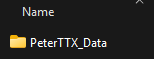
In this folder are three files:
- tasklist.txt contains a plain text copy of the tasks for adding as an OBS Text source
- tasklist.html is the HTML file for OBS to display as a browser source
- tasklist.json is the data file for StreamerBot to keep track of the tasks
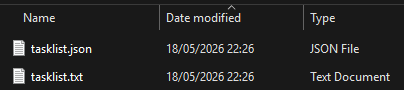
Using Browser Source in OBS
Once added to OBS as a Browser Source, you can configure colours, fonts, scrolling speed, and size to your requirements by altering the CSS area of the browser source.
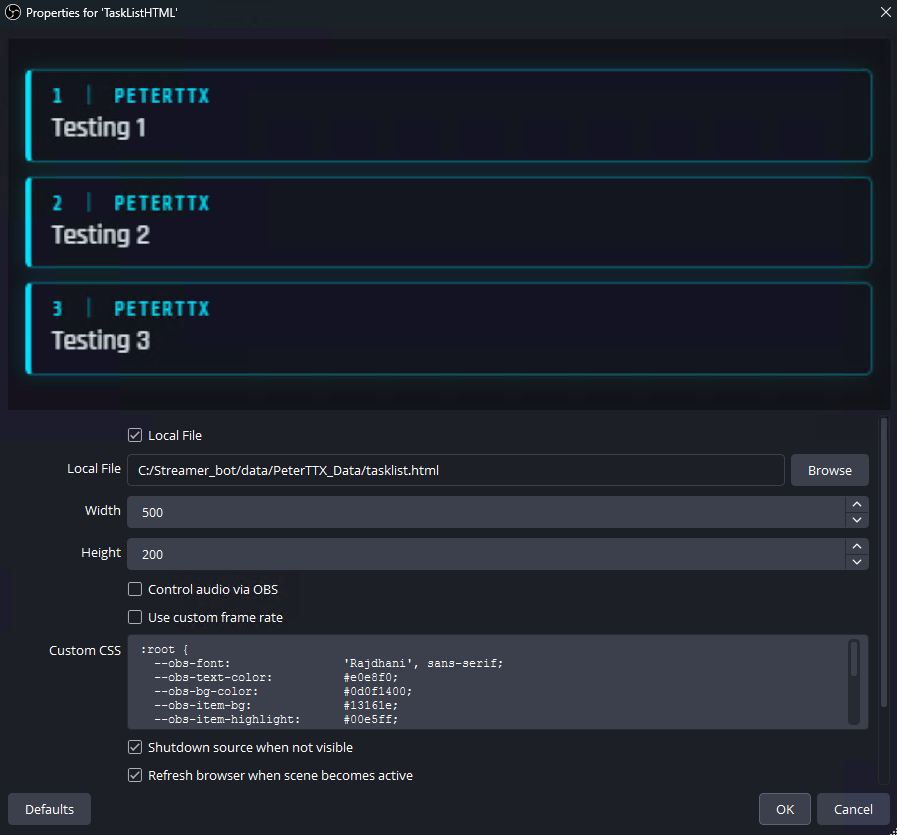
CSS Configuration
Copy and Paste this CSS code into the CSS section of the Browser Source, and adjust the CSS settings to match your style.
A HEX Colour is made from 6 characters; you can add two additional characters for transparency at the end.
- 0% (Transparrent) = 00
- 25% = 40
- 50% = 80
- 75% = BF
- 100% (Solid) = FF
:root {
  --obs-font:                'Rajdhani', sans-serif;
  --obs-text-color:          #e0e8f0;
  --obs-bg-color:            #0d0f1400;
  --obs-item-bg:             #13161e;
  --obs-item-highlight:      #00e5ff;
  --obs-item-border:         #00e5ff;
  --obs-author-color:        #00e5ff;
  --obs-author-font-size:    11px;
  --obs-author-font-weight:  400;
  --obs-value-font-size:     15px;
  --obs-value-font-weight:   500;
  --obs-scroll-speed:        '40';      /* pixels per second, 0 = disabled */}
Using GDI+ Text in OBS
Once added to OBS as a GDI+ Text source, you can configure colours, fonts, scrolling speed, and size to your requirements.
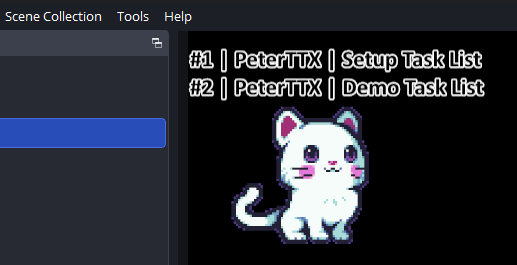
Contributors
PeterTTX Twitch
Discord The Smudgits