Description
This serves as a starting point for connecting your streamer.bot with the social media platform Stoat. It has several functions that work to help integrate your streams with your community. It also uses no third APIs because i hate those >:(
Supported platforms
This extensiuon currently supports youtube live streams and twitch.tv, other platofrms may be tested in the future if the need arises.
CURRENT FEATURES
- Automatic going live notifications
- Automatic recaps at the end of your streams
- Automatic screen-grabs posted to show your chat what’s happening on stream
- Automatic reports for bans and timeouts into a moderator channel
- SUGGESTIONS WELCOME
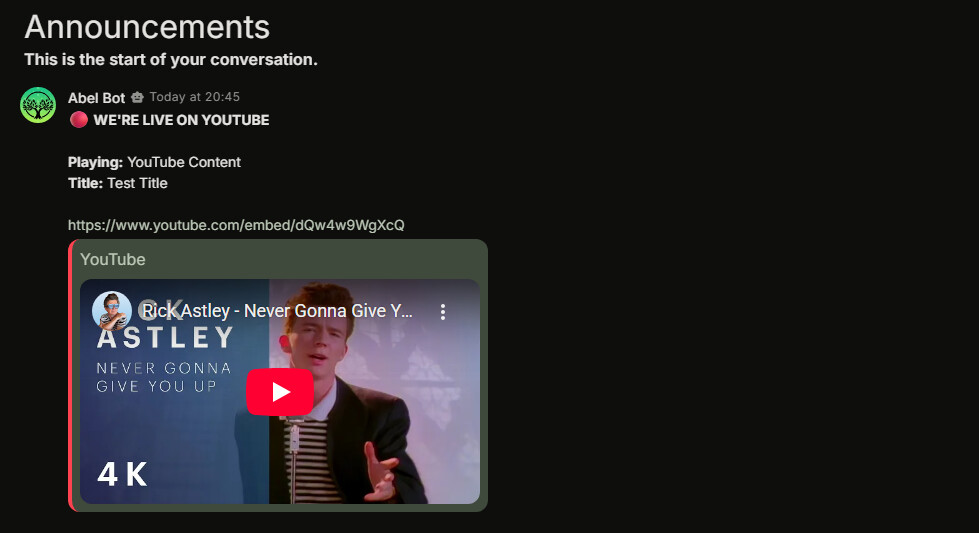
This was really painful btw, they don’t allow embeds of youtube natively for some reason.
Video Tutorial
Coming soon because it’s not done yet lmao
DOWNLOAD FOR FILE
Stoat&streamerbot.sb (18.9 KB)
Installation
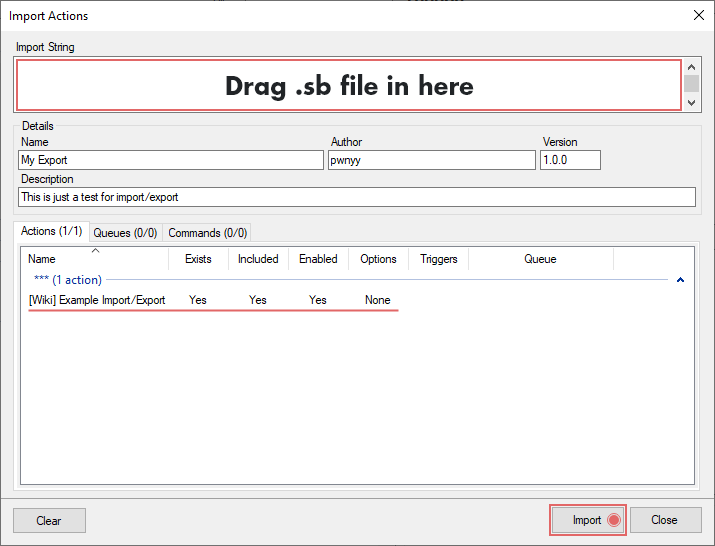
In Streamer.bot click the Import button in the top menu. Drag the .sb file into the Import String field.
Setup process
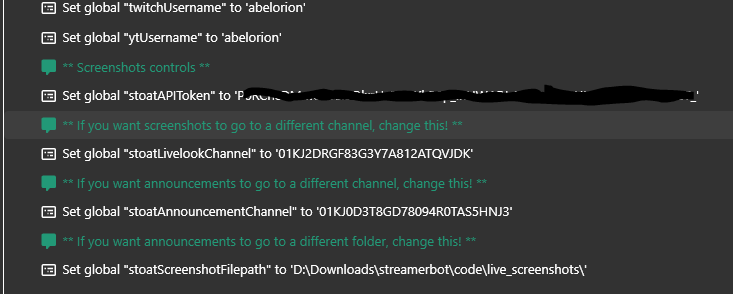
Once you’ve imported the code into streamer.bot you’ll need to update the variables in the “(Core) define variables” action
- Your twitch ID/Youtube ID - The code does support having both but it will just pick one over the other in most cases.
- Your Stoat API key
(Go to Settings> My bots> Create a Bot, Then copy the API Token)
EDIT: Make sure you invite the bot to your server and give it the following permissions:
- Send Embeds
- Upload Files
- React
- Mention Everyone
- Mentions Roles
- The channel IDs for the functions you would like to use
(Go to settings > advanced > show copy ID in context, then right click the channel and copy the IDs)
For example, if you want to use the screenshots function to automatically take screenshots of your stream and post them to stoat then you need to add a valid ID to the “stoatLiveLookChannel” variable
Configuration
[V1.0.1] All messages can now be edited through the variables listed in the define variables action. Special tags are available for some to allow a greater means of customisation.
General variables that should work everywherestrong text
- “\n” will create a new line
- {platform} in the announcement message will display which platform you just went live on
- {title} - displays your stream title
- {game} - displays which game you were playing
Announcements only variables
- {url} - displays an embed link for your stream
Recap only variables
- {duration} - how long your stream lasted
- {viewers} - what your peak viewer count was
- {followers} - new followers/youtube subscribers
- {subs} - new twitch subs/channel members
Screenshots only
- {time} - the time the screenshot was taken
As previously stated you can change which channel specific outputs go to by adjusting the relevant variable. So far there are two:
- stoatAnnouncementChannel - for your announcements like starting your stream or ending it.
- stoatLivelookChannel - for the screenshots function
I would also recommend disabling triggers you are not using. Both Twitch/Youtube notifications will be enabled by default so it’s best to turn one of those off if you don’t need them.
Screenshot functions
This feature can now be turned off in the “(Core) Live Variables” actions.
The screenshot function runs off of both a command and a timer, however you can adjust the triggers to make sure that it works to your needs :3
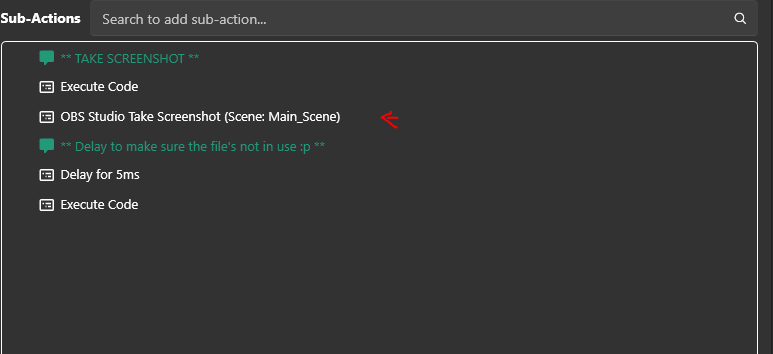
You can also edit which specific scene and source you’re targeting by editing the obs screen capture sub-action
IMPORTANT: Screenshots will be automatically cleared when streamer.bot restarts to help keep your filesize low
TO DISABLE THIS DELETION: Disable the “(Core) Clean up screenshots” action.
Commands
Display the available commands if your action uses them.
| Command | Description |
|---|---|
| !snap | triggers the screenshot command at any time! |